
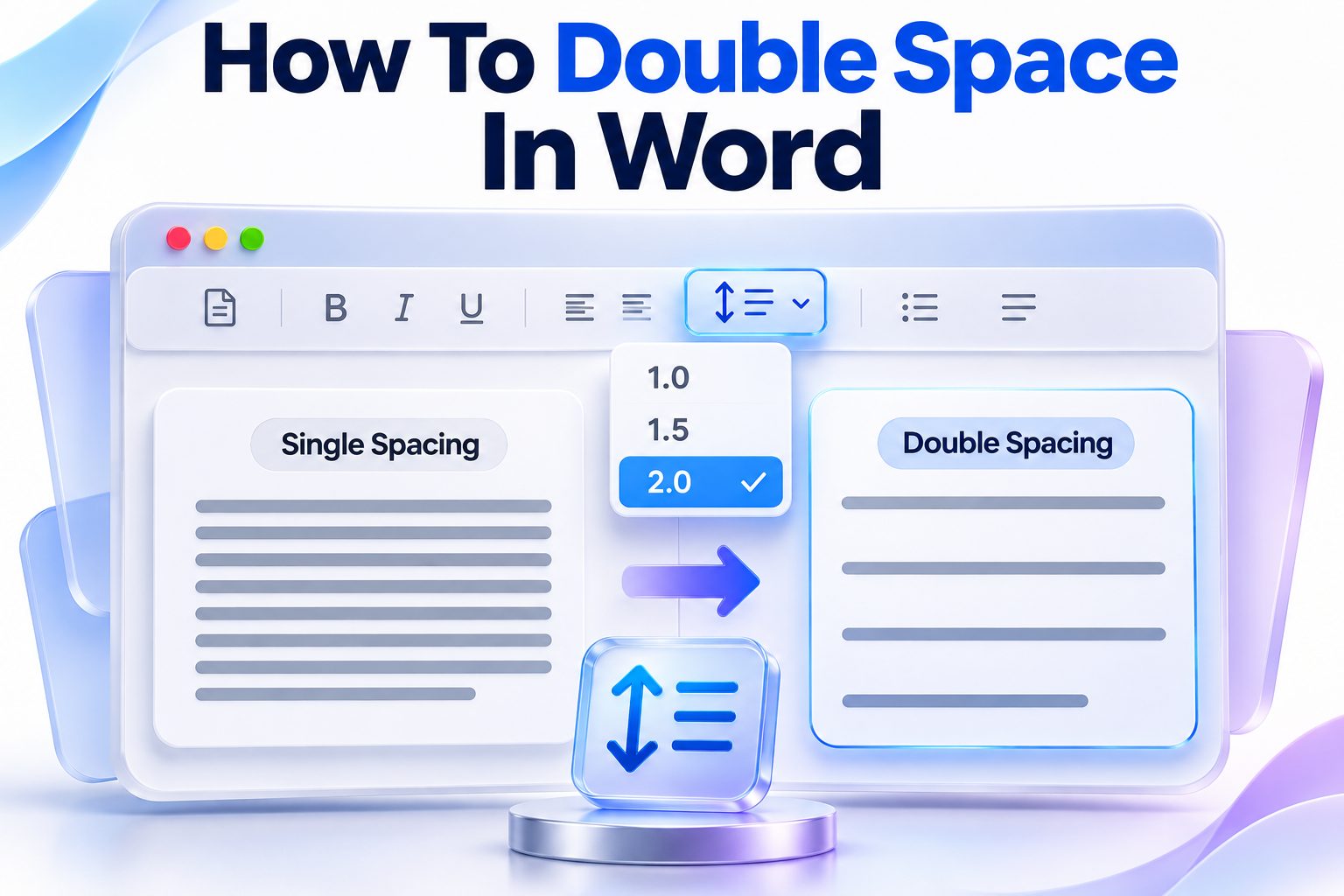
Double spacing changes the amount of vertical space between lines, making text easier to read and leaving room for handwritten comments. It is commonly required for essays, academic papers, manuscripts, and documents submitted for editing. Fortunately, Microsoft Word lets you apply double spacing to an entire document or only to selected paragraphs in a few clicks.
To learn how to double space in Word, select the text you want to format, open the Home tab, choose Line and Paragraph Spacing, and select 2.0. If you are starting a new document, you can set double spacing before typing so every new paragraph follows the same format. Keyboard shortcuts and paragraph settings provide other ways to achieve the same result.
This article explains each method for Word on Windows, Mac, the web, and mobile devices. You will also learn how to remove extra paragraph gaps, set double spacing as the default, format references correctly, and fix documents that do not look truly double-spaced.
Double Spacing in Microsoft Word Explained
Double spacing sets the line spacing within a paragraph to approximately twice the height of single-spaced text. It increases the vertical distance between one line of text and the next without inserting blank paragraphs. Word treats this as a paragraph-formatting setting rather than a font setting.
The feature is useful when teachers, editors, or submission guidelines require more room between lines. It also improves readability in dense drafts. Double spacing does not normally change margins, font size, indentation, alignment, or the space Word adds before and after paragraphs.
Line Spacing Versus Paragraph Spacing
Line spacing controls the distance between lines inside the same paragraph. Paragraph spacing controls the additional space placed before or after a paragraph. These settings work independently, which explains why a document can use double-spaced lines and still have unusually large gaps between paragraphs.
Many academic formats call for double spacing throughout the document without extra paragraph spacing. In that situation, you need a 2.0 line-spacing setting and zero points before and after each paragraph. Checking both settings prevents inconsistent results.
Key differences to remember:
- Line spacing affects lines within paragraphs.
- Paragraph spacing affects the gap between separate paragraphs.
- Pressing Enter twice creates an empty paragraph rather than true double spacing.
- A 2.0 setting may still look uneven when paragraph spacing is enabled.
- Font design and size can affect how wide the spacing appears.
Double Spacing an Entire Document
The quickest way to double-space an existing document is to select everything and apply 2.0 line spacing. In Word for Windows, press Ctrl+A. On a Mac, press Command+A. Then open the Home tab and locate the Paragraph group on the ribbon.
Select the Line and Paragraph Spacing button, represented by horizontal lines with vertical arrows, and choose 2.0. Word immediately applies the setting to all selected paragraphs. This method can also affect text inside headers, footers, tables, footnotes, and text boxes when those elements are included in the selection.
Using the Design Tab
Desktop versions of Word also provide a document-wide spacing control under the Design tab. Select Design, choose Paragraph Spacing, and then select Double. This applies a coordinated paragraph-spacing preset to the document rather than changing only the currently selected text.
The Design-tab method is convenient for a new document or a draft that uses consistent styles. For strict formatting requirements, the Home tab or Paragraph dialog box provides more control because you can set line spacing and paragraph gaps separately.
Double Spacing Selected Text
You do not need to reformat an entire file when only one section requires double spacing. Highlight the relevant sentences or paragraphs, open Home, select Line and Paragraph Spacing, and choose 2.0. Unselected portions of the document retain their existing formatting.
This approach is useful for quotations, assignment responses, manuscript excerpts, or forms containing sections with different requirements. Select complete paragraphs when possible. Because line spacing is a paragraph property, selecting only part of a paragraph generally changes spacing for the whole paragraph anyway.
Numbered steps for selected text:
1. Drag the pointer over the paragraphs you want to change.
2. Open the Home tab.
3. Find the Paragraph group.
4. Select Line and Paragraph Spacing.
5. Choose 2.0.
6. Review the first and last selected paragraphs for unintended changes.
Using a Keyboard Shortcut for Double Spacing
Microsoft Word offers a fast keyboard shortcut for applying double spacing. Select the appropriate text and press Ctrl+2 in Word for Windows. If nothing is selected, the shortcut changes the paragraph containing the insertion point and may affect text you type there afterward.
On many Mac versions of Word, Command+2 applies double spacing. Shortcut behavior can vary with system settings and customized keyboard assignments, so use the ribbon or Paragraph dialog if the command does not respond as expected.
Other useful Word line-spacing shortcuts include:
- Ctrl+1 for single spacing in Windows
- Ctrl+2 for double spacing in Windows
- Ctrl+5 for 1.5 line spacing in Windows
- Command+1 for single spacing on many Mac installations
- Command+2 for double spacing on many Mac installations
- Command+5 for 1.5 spacing on many Mac installations
These commands use the number keys in the main keyboard area. The numeric keypad may not produce the same result. Shortcuts are especially helpful when editing long documents with sections that require different spacing.
Adjusting Double Spacing Through Paragraph Settings
The Paragraph dialog box offers the most reliable method when a document must follow exact formatting rules. Select the text, right-click it, and choose Paragraph. You can also open the Home tab and select the small dialog launcher in the lower-right corner of the Paragraph group.
Under Spacing, open the Line spacing menu and select Double. Set Before and After to 0 pt when the document should not contain additional paragraph gaps. Select OK to apply the changes. The preview area shows how the spacing will appear before you confirm it.
Controlling Extra Space After Paragraphs
Modern Word templates often add space after each paragraph by default. That setting can make a double-spaced document appear to contain oversized gaps, particularly after headings, list items, and short paragraphs. It can also create formatting that does not meet academic submission rules.
To remove the gap, open the Paragraph dialog and enter 0 pt in the After field. You may also select Home, Line and Paragraph Spacing, and Remove Space After Paragraph. Check the Before field as well, since headings and imported styles sometimes add space above paragraphs.
Paragraph Settings Checklist
Before submitting a formally formatted document, verify the
- Line spacing is set to Double.
- Spacing Before is set to 0 pt where required.
- Spacing After is set to 0 pt where required.
- The option to avoid adding space between paragraphs of the same style is configured appropriately.
- Blank paragraphs have not been used to imitate spacing.
- Headings, quotations, references, and footnotes follow the required style rules.
- The document uses the requested font, size, margins, and indentation.
Double Spacing in Word for Mac
Word for Mac uses a ribbon layout similar to the Windows version. Select the text, open Home, find the Paragraph group, choose Line and Paragraph Spacing, and select 2.0. To format the complete document, press Command+A before applying the setting.
For exact control, open Format from the macOS menu bar and select Paragraph. Choose Double under Line spacing, then adjust the Before and After values if necessary. Menu names can differ slightly among Word releases, but the spacing controls remain within paragraph formatting.
Setting Spacing Before You Type
Place the insertion point in an empty document before entering text. Apply 2.0 from the Line and Paragraph Spacing menu, or press Command+2. New paragraphs should continue using the chosen spacing as long as you remain in the same style.
Pasting content from another file may introduce different formatting. Use Word’s paste options to keep the destination formatting, or reselect the pasted paragraphs and apply double spacing again. This avoids mixed spacing caused by copied styles.
Double Spacing in Word for the Web
Word for the web supports standard line-spacing controls through the Home tab. Select the relevant text or press Ctrl+A to select the document. Open Line and Paragraph Spacing in the Paragraph area and choose 2.0.
The web version may provide fewer advanced style controls than the desktop application. If you need precise spacing before and after paragraphs, open the paragraph options available in the browser interface or edit the file in the desktop app.
Changes made in Word for the web are normally saved automatically to the connected cloud file. Still, review the document in Print Layout or export it to PDF before submission. Page breaks and paragraph gaps are easier to identify in a fixed-layout preview.
Platform comparison:
Platform | Select all | Double-spacing method | Advanced control
Windows | Ctrl+A | Home, Line and Paragraph Spacing, 2.0 | Paragraph dialog
Mac | Command+A | Home, Line and Paragraph Spacing, 2.0 | Format, Paragraph
Word for the web | Ctrl+A | Home, Line and Paragraph Spacing, 2.0 | Limited paragraph options
Mobile app | Select text manually | Home, Paragraph Formatting, Line Spacing | Varies by version
Double Spacing in the Word Mobile App
In the Word app for Android or iPhone, open the document and enter editing mode. Select the text you want to change, then open the formatting controls. Depending on the screen size and app version, you may need to expand the Home menu or tap the formatting icon.
Find Paragraph Formatting or Line Spacing and select 2.0. Selecting an entire long document can be less convenient on a phone, so applying the setting before typing is often easier. Tablet layouts typically show more ribbon controls and resemble Word for the web.
If 2.0 is not visible, expand the paragraph options rather than adding blank lines manually. The exact location can shift after an app update, but double spacing remains a line-spacing property. Opening the same file in desktop Word is a practical alternative when precise formatting is essential.
Setting Double Spacing as the Default
Writers who regularly prepare academic papers or manuscripts can set double spacing as the default for new documents. Open the Paragraph dialog, choose Double for line spacing, and set the paragraph spacing values you prefer. Then select Set As Default.
Word may ask whether the change should apply only to the current document or to all documents based on the Normal template. Choose the Normal-template option only if you want future documents to begin with these settings.
Changing the default does not necessarily reformat existing files. Older documents retain their saved styles unless you modify them directly. Templates created by an employer, school, or organization may also override the Normal template with their own paragraph settings.
Quick tips for reliable defaults:
- Set Before and After spacing along with line spacing.
- Test the setting in a new blank document.
- Save specialized requirements in a separate template.
- Avoid altering an organization’s shared template without permission.
- Use styles when headings and body text require different spacing.
- Recheck defaults after major Word updates or template changes.
Double Spacing Academic Papers and Essays
Academic instructions commonly request double-spaced body text, but requirements vary by style guide and institution. Some assignments also require double-spaced titles, headings, block quotations, and reference entries. Footnotes, tables, and figure captions may follow different rules.
Apply the required formatting consistently rather than relying on how the document looks on screen. A document with enlarged font or added blank paragraphs can resemble double spacing while using incorrect structural settings. For related academic formatting advice, see [Internal Link: Formatting an Academic Paper in Microsoft Word].
First-Line Indentation With Double Spacing
Double spacing does not create paragraph indentation. If the assignment requires first-line indents, open the Paragraph dialog and choose First line under Special indentation. A common setting is 0.5 inches, though the required measurement should come from the assignment or style guide.
Avoid pressing the space bar several times to indent a paragraph. Spaces can shift when fonts, margins, or file formats change. The paragraph indentation setting produces consistent alignment and makes later revisions much easier.
References and Bibliographies
Reference lists are often double-spaced, but they may require a hanging indent. Select the entries, open Paragraph settings, choose Hanging under Special indentation, and set the required measurement. Then confirm that line spacing is Double and paragraph spacing is correct.
Do not insert tabs or manual line breaks to construct hanging indents. Word can manage the layout automatically. Correct paragraph formatting keeps multi-line sources aligned even when citations are edited, reordered, or transferred to another page.
Common Double-Spacing Problems
A document may still appear incorrectly spaced after you select 2.0. The most frequent cause is extra paragraph spacing, but copied formatting, styles, manual line breaks, and font characteristics can also affect the result.
Turn on formatting marks by selecting the paragraph symbol on the Home tab. These nonprinting marks reveal paragraph breaks, line breaks, tabs, and repeated spaces. They do not appear in the printed document and can quickly expose hidden formatting mistakes.
Mixed Spacing After Pasting Text
Text copied from websites, PDFs, emails, or other Word files may carry source formatting. As a result, one paragraph may remain single-spaced while the rest of the document is double-spaced. Lists and quotations are particularly prone to this problem.
Select the affected text and apply 2.0 again. If that fails, use Clear All Formatting and then restore the desired font, indentation, and spacing. Another option is to paste as text or keep destination formatting from the start.
Large Gaps Between Paragraphs
When the distance between paragraphs is much larger than the distance between ordinary lines, inspect the Before and After values. Word themes commonly apply 8 pt or more after body paragraphs, which is separate from double spacing.
Set both values to 0 pt if the formatting rules prohibit extra gaps. Delete empty paragraphs created by pressing Enter twice. Formatting marks make those empty paragraphs visible as standalone paragraph symbols.
Spacing Changes Only Part of a Paragraph
Line spacing belongs to paragraph formatting, so Word usually applies it to the entire paragraph containing selected text. Unexpected partial results may indicate manual line breaks, separate text boxes, table cells, or different embedded styles.
Use the paragraph marks to identify the document structure. Select all affected paragraphs, including their final paragraph marks, before applying 2.0. Text in tables, headers, footnotes, and shapes may need to be selected and formatted separately.
Common mistakes to avoid:
- Pressing Enter after every line
- Adding blank paragraphs between regular paragraphs
- Confusing 1.5 spacing with double spacing
- Changing font size to simulate wider spacing
- Ignoring spacing before and after paragraphs
- Formatting only the visible body while overlooking references
- Assuming copied content matches the destination document
- Using spaces or tabs for paragraph indentation
Double Spacing With Word Styles
Styles provide an efficient way to maintain consistent spacing in long documents. Instead of formatting paragraphs individually, modify the Normal style or a custom body-text style. Every paragraph using that style can then update at once.
Right-click the style in the Styles gallery, select Modify, and open Format followed by Paragraph. Set the line spacing to Double and adjust the Before and After values. Use separate styles for headings, quotations, captions, and references when their requirements differ.
Style-based formatting is especially valuable for reports, dissertations, and manuscripts that undergo frequent revisions. It reduces accidental inconsistencies and allows global changes without selecting hundreds of paragraphs. You can learn more through [Internal Link: Using Styles in Microsoft Word].
When Not to Double-Space Every Element
A general instruction to double-space a document may not apply identically to every element. Tables can become difficult to read when row heights expand, while footnotes may have separate formatting requirements. Business reports may use single-spaced headings and double-spaced draft text.
Follow the specific submission instructions rather than assuming one setting fits every component. When no detailed guidance exists, apply double spacing consistently to the main text and use restrained paragraph spacing. Consistency is more professional than a mixture of unexplained formatting choices.
Practical examples:
- An essay may use double spacing throughout, including the reference list.
- A manuscript may double-space body text while placing contact details in a compact block.
- A report may use double-spaced draft sections but single-spaced tables.
- A transcript may require line numbering alongside double-spaced dialogue.
- A review copy may use double spacing to provide room for handwritten comments.
Checking Double Spacing Before Submission
Visual inspection alone is not always reliable because different fonts produce different line heights. Select a representative body paragraph and open the Paragraph dialog to confirm that Line spacing reads Double. Check headings, block quotations, references, and other special elements separately.
Use Print Preview or save a PDF to inspect pagination. Double spacing increases the number of pages and can move headings or isolated lines to awkward positions. Review the document after formatting instead of assuming the page layout will remain unchanged.
A final formatting check should include:
1. Select a body paragraph and verify Double line spacing.
2. Confirm paragraph spacing values match the instructions.
3. Turn on formatting marks and remove accidental blank paragraphs.
4. Inspect pasted quotations, lists, and references.
5. Check headers, footnotes, tables, and text boxes where relevant.
6. Review first-line and hanging indents.
7. Open Print Preview or the exported PDF.
8. Save the final document in the required file format.
Conclusion
Double spacing in Microsoft Word is a paragraph-formatting setting, not a matter of pressing Enter between lines. For most documents, select the relevant text, open Home, choose Line and Paragraph Spacing, and select 2.0. The Ctrl+2 shortcut in Windows and Command+2 on many Mac installations offer a faster alternative.
When the result looks uneven, inspect paragraph spacing as well as line spacing. Extra values before or after paragraphs, blank paragraph marks, pasted formatting, and inconsistent styles are the most common causes of oversized or irregular gaps. The Paragraph dialog gives you the most precise control over these settings.
Knowing how to double space in Word also means checking the full document rather than formatting only the body. References, quotations, headings, footnotes, tables, and text boxes may need separate attention. Before submitting the file, confirm the settings, reveal hidden formatting marks, and review the pages in Print Preview or PDF form. Those final checks help ensure the document is consistently formatted and ready for its intended audience.
Frequently Asked Questions
Can I double-space a document before typing?
Yes. Place the insertion point in a blank document and select 2.0 from the Line and Paragraph Spacing menu. New paragraphs will retain that spacing unless you change styles or paste text containing different formatting.
What is the shortcut for double spacing in Word?
Press Ctrl+2 in Word for Windows after selecting the text. On many Mac versions, press Command+2. If the shortcut does not work, use the Line and Paragraph Spacing menu on the Home tab.
Why does double spacing create large paragraph gaps?
Extra spacing is probably applied before or after paragraphs. Open the Paragraph dialog and inspect the Before and After values. Set them to 0 pt when your document should have no additional gaps between paragraphs.
Does double spacing apply to references?
It depends on the required style or submission instructions. Many academic reference lists are double-spaced and use hanging indents. Apply these as separate paragraph settings rather than creating indents with tabs, spaces, or manual line breaks.
How do I return double-spaced text to single spacing?
Select the affected text, open Line and Paragraph Spacing, and choose 1.0. In Word for Windows, Ctrl+1 also applies single spacing. Check paragraph spacing separately if unwanted gaps remain after the change.